Publish automatically
This page is for a document author who wants a reviewed Markdown change to become a website and PDF automatically. continuous integration (CI) runs the publishing commands on a clean hosted machine after a push, then hands the static website to GitHub Pages or GitLab Pages.
You should not have to design that automation. prodockit-template supplies
the maintained files; this page explains how to use them, what they build, and
how to tell whether publication really succeeded.
On GitHub, GitHub Actions runs the workflow. On GitLab, the equivalent pipeline is GitLab CI.
Use the maintained automation files
The host-specific workflow files and the outputs they build are mapped in Table 11.1.
1. Use the maintained automation files
| Host | Maintained source | What runs |
|---|---|---|
| GitHub Pages | docs.yml |
Builds the outputs, uploads the site, deploys Pages, and verifies the public site |
| GitLab Pages | .gitlab-ci.yml |
Builds the outputs and publishes the public/ Pages artifact |
Table 11.1 maps each host to its maintained workflow and build. The comments in those files explain settings that must remain beside the commands they control: pinned system tools, browser variables, fonts, build order, Pages permissions, and artifact paths. Refer to the files for exact YAML rather than copying a workflow from this guide.
Projects created from prodockit-template already contain both files. If an
older template-derived project is missing later workflow fixes, preview them
without writing:
Review and apply the result using Staying in step with the template.
Publish the first change
The first publication proves the same source locally before GitHub or GitLab builds and deploys it. Follow the steps in order.
-
Prove the project builds locally
This repository publishes page update dates, so its workflow includes
prodockit update-dates. A different project can omit that optional command when its website does not display dates.Fix a local failure before pushing. CI starts from a clean machine, so it cannot repair a missing page, broken link, or failing test that is already reproducible in the checkout.
-
Confirm the publishing file is present
Confirm
.github/workflows/docs.ymlexists. It should run when the repository's default branch changes and should allow a manual run for recovery.Confirm
.gitlab-ci.ymlcontains apagesjob. GitLab reserves the namepublic/for the directory that job publishes.Use the maintained links above to compare a file that appears incomplete. Do not replace a customised workflow until you have reviewed the difference.
-
Push through the review gate
Open a pull request or merge request. After its checks and review are complete, merge it into the branch the publishing workflow watches—normally
main. -
Watch the publishing job
Open Actions, select Documentation, and open the run for the merged commit. Check both the deployment and later live-verification result.
Open Build > Pipelines, select the pipeline for the merged commit, and inspect its
pagesjob. Then use Deploy > Pages to find the published address. -
Verify delivery as a reader
Open the Pages address in a private browser window. Find the known change, follow a navigation link, and download the PDF from the site.
A successful build proves an artifact was produced. A successful deployment proves the host accepted it. Opening the public result proves a reader can retrieve the intended version; these are three separate checks.
Understand the build order
A publication run performs one ordered chain rather than a set of independent builds. It first creates the website because the PDF command reads that generated HTML. It then builds the PDF, adds optional page dates to the website, tests the completed outputs, deploys Pages, and checks the live site.
Figure 11.1 shows that order. Follow the arrows across the top row and then continue from the page-date step to the lower row. A failure stops the chain before an incomplete output can be deployed.
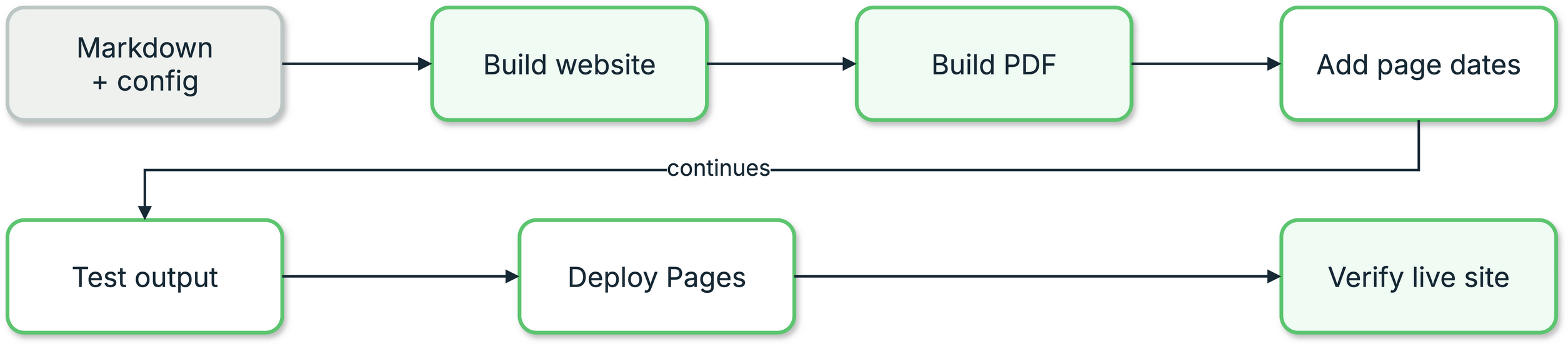
1. Publication build and verification order
The PDF command validates the completed website, builds the document, and adds it to that site only after the PDF has finished successfully. It does not call Zensical or clean the generated website. Reversing the commands would make the PDF read an absent or stale site and is rejected.
Some projects also run prodockit source-bundle before the site build. That creates
a second downloadable PDF containing the Markdown and configuration rather
than the rendered report.
Know what the hosted machine needs
Table 11.2 connects each runner requirement to the build feature that needs it.
2. Know what the hosted machine needs
| Requirement | Used for | Failure when absent |
|---|---|---|
| Base Python requirements | Zensical, prodockit, and website tests | The command normally fails |
pdf-requirements.txt |
WeasyPrint on macOS/Linux; PyMuPDF only for an enabled index | The PDF command prepares these on first use and fails clearly if installation or validation fails |
| Pandoc | PDF conversion and prodockit.bibliography |
The build fails |
| WeasyPrint native libraries | PDF layout | Import or PDF build fails |
| Document fonts | Correct PDF typography and pagination | A fallback font may be substituted silently |
| Python Mermaid runtime | Mermaid diagrams in the PDF | Preparation or rendering fails with an actionable error |
| Node and MathJax | TeX maths in the PDF and website bundle | The output can contain raw TeX |
| Citation style files | Bibliography formatting | A configured missing style stops rendering |
| Suitable Git history or release metadata | Version text used by a cover or macro | The field can be empty or one release behind |
The maintained workflow files install the requirements in Table 11.2 in dependency order. A document author normally changes the content and requirements, not the operating-system recipe.
Catch failures that still produce output
Some failed dependencies leave behind plausible but incomplete output. The following checks make those silent degradations fail the workflow instead of publishing them.
Render diagrams and maths
WeasyPrint has no JavaScript engine. The PDF build therefore turns Mermaid and TeX maths into static images before Pandoc sees the pages. A Mermaid diagram is required output: a syntax error, timeout, resource limit, or worker failure stops the build before the requested PDF is replaced or published. The error identifies the diagram number without repeating its source.
Build-output tests make renderer failures enforceable:
from prodockit.testing import assert_no_unrendered_mermaid, assert_no_unrendered_tex


def test_diagrams_and_maths_rendered(prodockit_pdf_page_texts):
    assert_no_unrendered_mermaid(prodockit_pdf_page_texts)
    assert_no_unrendered_tex(prodockit_pdf_page_texts)
The template workflow prepares the project-local Python Mermaid runtime before building. It does not install a browser, Puppeteer, npm package, or MSYS2.
Check embedded fonts
The website can download fonts when a browser opens it. A PDF must embed fonts available on the build machine. WeasyPrint may silently substitute another font, changing appearance, line wrapping, pagination, and index page numbers.
Use the template's font packages as the starting point and add an output test when the project requires a particular typeface.
Fetch tags only when the document uses them
Zensical's {{ git.short_tag }} variable reads Git tags reachable from the checked-out
commit. GitHub's default shallow checkout has no tags, so the value becomes an
empty string without failing the build. Set a full checkout only when the
document uses tag-derived variables; the template's PDF-only {RELEASE} marker
uses host release metadata instead.
Test the artifact, not only the source
prodockit.testing opens the generated site and PDF. Start with checks that
prove the required outputs exist, then add document-specific expectations:
def test_the_pdf_was_built(prodockit_pdf):
    assert prodockit_pdf.page_count > 1


def test_the_site_has_the_cover(prodockit_soup_for):
    cover = prodockit_soup_for("index.html")
    assert cover.title is not None
The template's own sample-output checks describe its starter document and are advisory because real projects replace that content. A generated project should replace them with assertions about its own required output and decide which must gate publication. See Test the built output.
Troubleshoot a publishing run
Start with the symptom-to-check map in Table 11.3.
3. Troubleshoot a publishing run
| Symptom | Start with |
|---|---|
| The same command fails locally | Fix the source or local configuration before investigating CI |
| A tool is absent only in CI | Compare the workflow with the maintained template file and its pinned requirements |
| The PDF contains raw Mermaid or TeX | Run pdk diag, prepare the affected project-local renderer, and inspect its PDF error; Node.js applies only to MathJax |
| The PDF uses the wrong font | Check the operating-system font packages and inspect embedded fonts |
| The website builds but the PDF link is stale | Confirm the strict Zensical build runs before the PDF command and both use the same artifact directory |
| GitHub deploys but the public page is old | Inspect the workflow's live-verification job and rerun the maintained workflow against the default branch |
| GitLab succeeds but no site is visible | Open Deploy > Pages, then check project/instance Pages visibility and the public/ artifact |
Repository release numbering, dependency drift, and workflow maintenance are covered in Maintain prodockit. Existing links to the former sections above remain valid.