Staying in step with the template
A project generated from prodockit-template is a copy, not a link. The
moment it is created it starts to age: the template gains a CI fix, a
stylesheet rule, a newer Node pin, and the copy keeps the version it was
born with. Nothing tells you, because nothing breaks - the site still
builds, the PDF still renders, and the difference only shows up as a
document that looks slightly unlike everyone else's.
The prodockit template-sync command closes that gap without touching a word of your
writing.
Students can follow the single project check and update sequence to use Diagnostics, Pins, and Template Sync in the correct order.
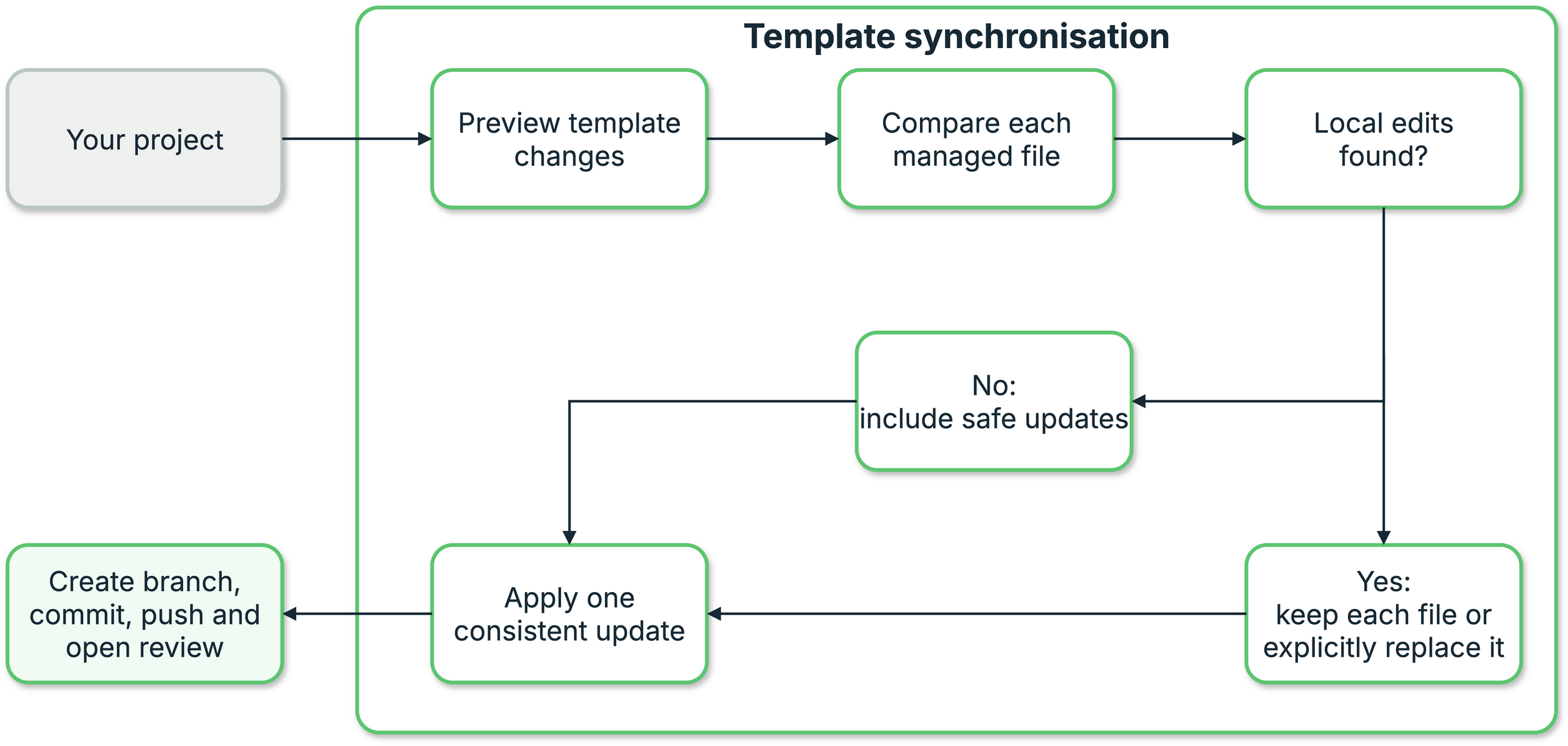
Figure 10.1 follows each managed file from the preview to
the default review workflow. An unchanged local file takes the safe-update
path; a file with local edits is preserved unless the author selects it with
--review-all or targeted --force, reviews the displayed diff, and chooses
overwrite, .new, or skip. Both paths rejoin as one consistent update, which
--apply commits to a separate branch and sends for review.
1. Template-sync decision flow
Use it periodically while a project is active and before a final release. A long gap is supported, but it produces a larger change that is harder to review and more likely to combine a CI migration with a visual change.
Complete a template update
Work from the project environment, preview what changed upstream, and resolve each author-edited file before rebuilding and publishing.
-
Open the project and activate its environment
After Bootstrap, use the post-install activation step first: leave the parent setup environment and activate the clone's
.venv. On Windows reopen the terminal application to pick up installation changes. For later sessions, activate the project environment as shown below.Replace
path/to/your-projectwith the folder containing your project. The folder must be the top level of the project, where the.gitdirectory,.venvdirectory, andzensical.tomlfile are located. The prompt normally starts with(.venv)after activation. -
Check the project and preview the update
Run
template-syncfrom the activated project environment. This uses the version of prodockit installed for that project and keeps the command aligned with the project's other build tools.You can have unfinished writing in your chapters. The command will stop only if a file supplied by the template has uncommitted changes, because updating that file could hide work you have not saved in Git. Read the short summary and pay particular attention to any files described as "your edited files".
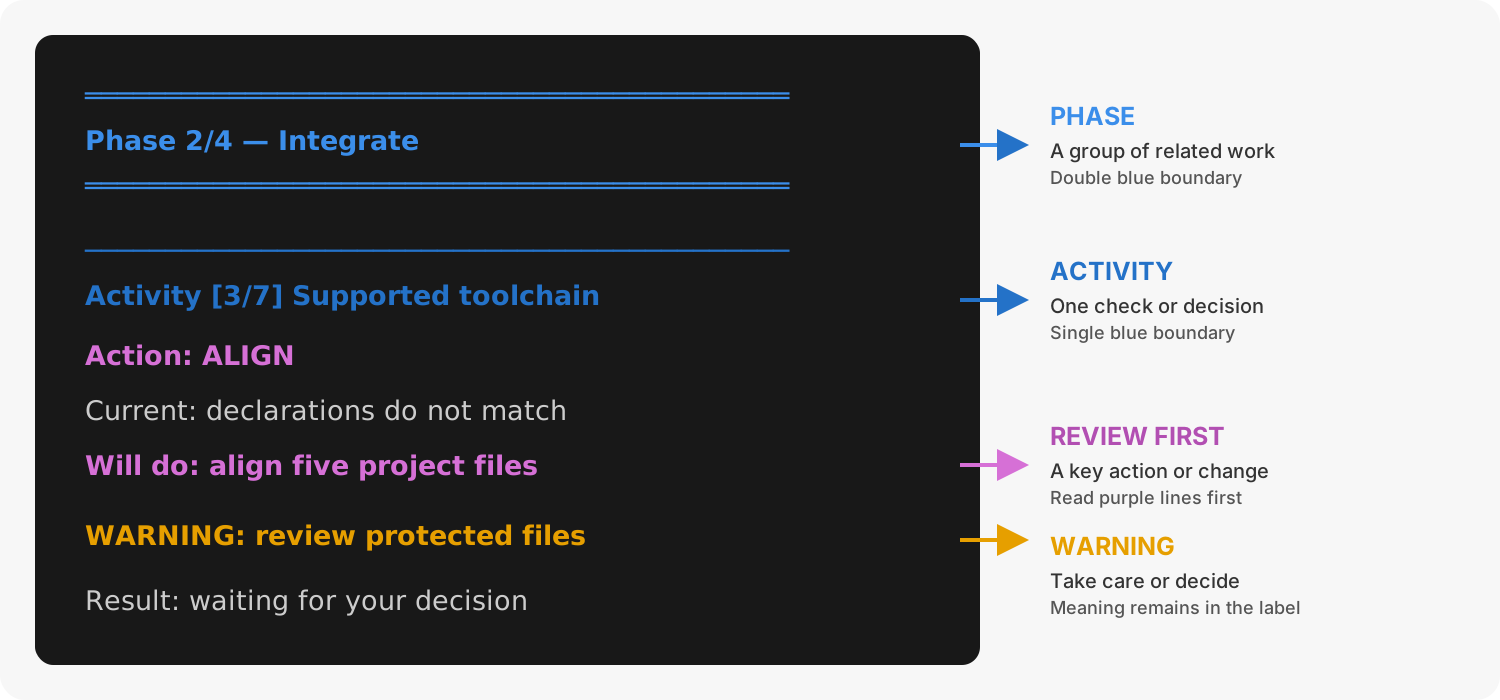
Figure 10.2 is a short visual guide to the preview. Use section 28.1, Scan phases and stages for the complete explanation:
2. Reading a Template Sync preview
Older files that the current template no longer delivers are listed for review, not deleted. In particular, a retained
tools/mathjaxtree from an older template is reported even though the template once ownedtools/**. Remove it if unused;pdk pdfnow selects project-local JIT MathJax unlesspdf_tex2svg_scriptis explicitly configured.For a GitLab.com project, SSH access is required only for the project's GitLab.com remote. Template Sync fetches the public template from GitHub over HTTPS, so it does not require a GitHub account or a second SSH key. If GitHub asks you to accept an SSH host key, update Prodockit before continuing.
-
Resolve any protected files
If the preview lists edited template files, use
--review-allto select all of them for one interactive review. For a single file, add the displayed--force FILE-PATH. During the applied run, Template Sync shows each complete unified diff and offersoverwrite,new, orskip. The prompt defaults toskip, so changing or copying a file always needs an explicit decision. The normal apply route stops before changing anything until every protected file has been selected for review.To save incoming copies for all unresolved edits without selecting them one by one, use
prodockit template-sync --apply --local-only. Preview mode and a normal--applywithout decisions leave the project unchanged. -
Apply and send the update for approval
Before it creates a branch, the apply command checks that the active environment has one unambiguous Prodockit and Zensical metadata record. If an interrupted package upgrade left duplicates, it stops and asks you to run
pdk diag --apply --apply-check installation.metadata; no template files are changed automatically. This repair uses only the active environment's installed-package evidence. It does not inspect, fetch, or apply a template.The command then asks separately before aligning Prodockit and before running Adopt. Both questions default to No. A required package replacement is followed automatically by a fresh-process handoff, not a manual restart. Only after the exact Prodockit and its supported toolchain verify successfully does the command make a
template-update-...branch, apply the template changes, save the Adopt and template file changes as one commit, and send the branch to GitHub or GitLab. On GitLab it also creates the merge request. It prints a link to the review page, and no Git commands are needed. -
Review, test, and approve
Use the printed link to open the pull request or merge request. Review the file changes and wait for its automated checks. If you also test locally, run the commands above from the update branch. When the results are satisfactory, approve and merge the request in the website.
If your project deliberately updates
maindirectly without review, use this alternative apply command instead:It shows the commit, merge, and push it proposes and asks before doing them.
-
Confirm the next run is clean
After the update reaches
main:“Your project is already up to date with the template” is the verification. If changes are still shown, check for an unresolved
.newfile or an edited file you deliberately kept.
When only the environment needs aligning
Sometimes the paired Prodockit release or its supported toolchain changes but none of the files owned by the template does. In that case the preview says that no template files need changing and still shows the exact package and Adopt stages. There is no template change to commit or push.
After alignment, start the Pages or documentation pipeline in GitHub or GitLab. This manual rebuild is still necessary: it republishes the website and PDF using the supported combination. A successful local alignment alone does not replace outputs that were already published.
Resume a stopped prerequisite
Declining either confirmation leaves the template files, applied-release
stamp, and update branches untouched. A failed download, verification, or
Adopt stage also prevents template application. The Prodockit package may
already have reached its exact version when a later Adopt stage stops; that is
a safe resumable state, not a partially applied template. Correct the reported
problem and run the same prodockit template-sync --apply command again. The
next preview reports the completed package stage as CHECK and continues from
Adopt.
For an offline retry, first place the required wheels in the directory named
by PDK_WHEELHOUSE and any native downloads in the validated Prodockit cache,
then add --offline. Offline mode never falls back to the network. For an
unattended run, both --accept-prodockit and --accept-adopt are required
before the first environment change; omitting either fails before a partial
update can begin.
Choose how far the command should go
The progression from preview to a pushed update is shown in Table 10.1.
1. Choose how far the command should go
| Command | What it does | When to use it |
|---|---|---|
prodockit template-sync |
Shows what needs updating, without changing the project | Start here |
prodockit template-sync --verbose |
Shows the same preview with technical details and file paths | You are investigating a particular file or reporting a problem |
prodockit template-sync --apply |
Makes and saves the changes on a separate branch, sends it to the host, and creates a GitLab merge request | Your project uses a pull request (GitHub) or merge request (GitLab) |
prodockit template-sync --apply --push |
Makes the changes and, after asking you, updates main directly |
Your usual practice is to update main without a pull or merge request |
prodockit template-sync --apply --local-only |
Applies and stages the changes without committing or sending them | You are comfortable finishing the Git workflow yourself |
prodockit template-sync --apply --force FILE-PATH |
Shows the named file's diff, then offers overwrite, .new, or skip |
You need to decide how to handle one edited template file |
prodockit template-sync --apply --review-all |
Selects every edited template file, shows each complete diff, then offers overwrite, .new, or skip |
Several edited files need reviewing and repeating --force would be cumbersome |
prodockit template-sync --apply --offline |
Applies using only the configured wheelhouse and validated native cache | The environment has no network access and the required downloads have already been cached |
prodockit template-sync --apply --accept-prodockit --accept-adopt |
Explicitly permits both prerequisite mutations without prompts | An unattended job has been deliberately authorised to change its active environment and project |
If you are unsure, use the first command in Table 10.1. It is only a preview. The output tells you whether an update is available and which command to run next.
Read the output
Template Sync uses the shared phase-and-activity layout. Its four phases add the following command-specific meaning:
- Assess and preview identifies template-file changes, protected edits, dependency declarations, shared files, and the release recorded after a successful apply.
- Compatible Prodockit
compares the active release with the exact release paired with the incoming
template. Read
Action,Current,Required, andResultbefore accepting an upgrade or downgrade. - Supported toolchain
previews each Adopt stage.
CHECKmeans no change;ALIGNorCONFIGUREnames work that Apply must complete first. File lines use paths relative to the project root. - Apply template update
says whether the run is a non-writing
PREVIEW, is waiting for a protected-fileDecision, or can create the review branch.
The complete .prodockit-template.log contains the verbose report in plain
text. Share that file when investigating a run; --verbose displays the same
source, classification, and per-file evidence in the terminal.
Stop if a mirror proposes an unexpected downgrade
A project uses the template repository for its selected host. For example,
a Surrey project reads the Surrey GitLab mirror rather than silently
falling back to GitHub. If the preview proposes an older Prodockit or
Zensical release than expected, do not use --apply: verify that the
mirror's main branch and matching template release tag have completed
their downstream release sync.
Creating a mirror merge request is not enough while that request remains
open.
During apply, an older package is upgraded and a newer package is downgraded to that exact release. The command asks first, with No as the default. If you agree, it installs through the active interpreter with the same mirrors, wheelhouse, retries, and cache policy as Adopt. It then transparently hands the remaining work to a fresh Python process and verifies the loaded release. This is still one command: there is no manual restart or second invocation, but code imported from the replaced release is never used to change the project.
The fresh process previews Adopt and asks separately before it changes the
rest of the active environment or Adopt-managed project files. No is again
the default. Adopt installs and verifies the complete combination supported by
that Prodockit release, including exact upgrades and downgrades, while keeping
its installation logic independent of the template. Template Sync only
orchestrates that implementation; it does not duplicate it.
.prodockit-components.toml is project-owned and is therefore not copied or
overwritten from the template. If it is absent in an older project, Adopt
defaults Mermaid and maths off and saves that local record when its integration
activity is approved. Run pdk adopt --configure before Template Sync when the
project needs either optional renderer. Files
declared in .prodockit-shared-files.toml, including the managed website and PDF
stylesheets, are refreshed from the installed Prodockit release and included
in the same review request. The merge request therefore contains a complete,
internally consistent update rather than only the files copied directly from
the template.
The same check maintains the extra_css and extra_javascript lists in
zensical.toml. Missing template entries are restored
in cascade order, cache-key changes replace the older form of the same path,
and additional project entries are retained. If extra.css, print.css, or
extra.js is missing, the template's starter copy is added. Once present,
those three files belong to the author and Template Sync never replaces their
contents, including in projects made from an older template manifest. Managed
PDK assets follow the shared-file rule instead: a missing or outdated copy is
refreshed from the installed Prodockit release. PDF-only policy, including the
PDF stylesheet cascade, is project-owned in pdk-pdf.toml; a missing file is
seeded from the template without replacing an author's existing policy.
Use --apply on its own when changes normally reach main through a pull
request or merge request. On GitLab, the merge request is created for you; you
only need to review and approve it. On GitHub, the branch is sent and the
command gives you the page that opens the pull request. Use --apply --push
only when your usual practice is to update main directly. It cannot bypass a
protected branch.
What it will and will not write
The split is decided by a manifest that lives in the template, not by the command, and every file the template ships is classified in it. A file that is in neither list stops the run rather than being guessed at.
Table 10.2 explains how template-sync treats managed, author-owned, generated, and unclassified files.
2. What it will and will not write
| Group | Examples | What happens |
|---|---|---|
| Template-owned | .github/workflows/, docs/stylesheets/template.css, macros.py, tools/ |
Replaced, unless you have edited it |
| Project-owned | docs/*.md, docs/assets/, docs/stylesheets/extra.css, docs/stylesheets/print.css, docs/javascripts/extra.js, bibliography.bib |
Missing starter assets are created once; existing files are never replaced |
| Seeds | .vale.ini, starter pages |
Written only if absent |
| Shared | .gitignore, zensical.toml, dependency declarations, packaged stylesheets |
Settings and asset lists are merged; Prodockit and Zensical versions are aligned across requirements and CI; declared shared files are refreshed from the installed release |
| Excluded | CONTRIBUTING.md, issue templates |
Not delivered at all |
The ownership groups in
Table 10.2 set the write
boundary. Within the shared zensical.toml, an existing project.extra.pdf_*
value is
author-owned. Template sync adds a PDF parameter introduced by a newer
template when the project does not have it, but never overwrites an existing
page size, margin, duplex-layout, header/footer, stylesheet, output-path, or
future PDF setting. Those values describe the document the author intends to
publish; restoring defaults such as A4 paper and 2 cm margins would be a
content-changing operation, not maintenance.
Your writing is not in scope
The report, its figures and its bibliography are never written, and never even read for comparison. A sync cannot lose your work because it never opens it.
Running it
Run it from the project's activated virtual environment and from the root of
the project - the directory containing .venv and .git. It refuses to run
from another directory rather than half-working, because every path it writes
is relative to where it started. The first step in
Complete a template update shows both commands
for macOS, Linux, and Windows.
That is a preview: it applies no template change. It only updates the ignored diagnostic log described below. Read the report, then:
--apply makes the changes on a separate branch, saves them as one commit, and
sends them for review. GitLab creates the merge request automatically. GitHub
receives the branch and the command prints the page for opening its pull
request. In either case the author does not need to enter Git commands.
Experienced Git users can preserve the old local-only stopping point:
This applies and stages the files but does not commit or send them.
Showing technical detail with --verbose
The normal report is intentionally short. It gives the number of files to add or update and names only edited files that need your decision.
Add --verbose when you need to see how the result was reached:
The detailed report includes the template source, the version used for the
comparison, how every template file is managed, every file to add or update,
and older template files that will be left alone. --verbose does not change
the project and can be combined with --apply if you want the same detail
while making the update.
Every run writes this full detail to .prodockit-template.log, even when you
do not use --verbose. If you need help with a run, share that log rather than
running the command again solely to collect the detail.
The branch it works on
The branch is named after the template version you are moving from, so a second run against the same version continues on the branch the first one made rather than starting again.
That name outlives the run, though, and a branch left over from months ago will not contain anything you have committed since. Continuing on it would sync your project against older files and report success, so a leftover branch that does not contain the commit you are on is refused:
Error: the branch template-update-6fbbbbeb8 already exists and does not
contain the commit you are on, so continuing would run this against older
work. Merge it, or delete it with `git branch -D template-update-6fbbbbeb8`,
and run this again
You are left on the branch you were already on, with nothing written.
A follow-up run can also make a second branch, and that surprises
people. The name comes from the baseline you are moving from, so once a
run has recorded a stamp, the next one is moving from a different place
and branches accordingly - a --force run straight after an ordinary one
lands on template-update-<new baseline> rather than back on the first
branch.
Nothing is lost or duplicated: the second branch is made from the first, so it contains it, and one merge picks up both. Merging them separately just makes the first look like it did nothing.
Updating main directly
Use this route only if your normal practice is to update main without a
pull request or merge request:
The command applies the template changes on its separate branch, commits them,
merges them into main, and sends the updated main branch to GitHub or
GitLab. Sending main starts the automated build that republishes the site.
Before doing that, it shows a final summary and asks you to confirm:
Ready to update the main project directly:
  Save this update as one commit (9 files).
  Add it to main.
  Send main to GitHub or GitLab, which starts the site build.
  This does not create a pull request or merge request.

Update the main project now? [y/N]:
Answer y to continue. Any other answer stops safely: the changes remain on
the separate branch and nothing is sent to GitHub or GitLab.
If your project normally uses a pull request or merge request, do not use
--push. Run prodockit template-sync --apply; it publishes the separate
template-update-... branch and prepares the review route for you.
Uncommitted writing is fine
You do not have to commit your chapters first. A project being written always has work in progress, and it travels across the branch switch untouched. Only uncommitted changes to template-owned files stop a run, and those are refused earlier, before anything is written.
Updating main by hand
If direct updates to main are allowed but you prefer to enter the Git
commands yourself, first use --apply --local-only, then enter these commands:
Replace the example branch name with the branch printed by your run. The site
is rebuilt only after the updated main branch is pushed. Committing locally,
or pushing only the template-update-... branch, does not republish it.
This merges straight into your default branch
--push does not create a pull request or merge request and does not add a
review or approval step. Use it only when direct updates are the normal
practice for your project. If main is protected, the push will be
rejected; use --apply on its own and open a pull request or merge request
instead.
A file you have edited
A template-owned file you have changed is kept. A preview only reports it;
it does not write a sidecar. Use --apply --local-only to write the template
version beside it as <name>.new, or use --review-all to select every edited
file. Targeted --force selects one file. Both forms show a complete diff and
offer overwrite, .new, or skip. Nothing is overwritten silently.
If either managed stylesheet differs, the report adds a separate
“Warning - managed stylesheet changes found” message. Stylesheets
explains the managed and author-owned files and their loading order. Move
deliberate website rules from pdk.css to extra.css, and deliberate PDF-only
rules from pdk-pdf.css to print.css. You can then use --review-all, or a
targeted --force, to restore Prodockit's current managed versions without
losing the rules you moved.
"Edited" does not always mean you changed it. A file counts as edited when it does not match the baseline the run settled on - which is equally true of a file you customised and one you simply never received an update for. The tool cannot tell those apart, and you usually can, at a glance:
If the differences are all yours - your module code, your group, your wording - keep what you have. If they are all the template's own history - newer pins, a step you have never seen, a comment referring to an issue you did not raise - then you are simply behind, and taking the template's version is right.
What that looks like in practice
Syncing a real assignment repository, both files reported as edited
turned out to contain nothing project-specific whatsoever. One was a
.gitlab-ci.yml still pinning prodockit==0.21.0 against the
template's 0.39.0, missing a prodockit init-mathjax step added
months earlier - so every page that pipeline had built showed raw TeX
instead of maths. Neither file had been edited at all; both had just
never been updated.
Taking the template's version
Use --review-all to select every edited file for explicit decisions:
Use --force when only selected files need review:
Four things to know about the review:
--review-allselects the complete protected set. Each file still gets its own diff and decision; it does not imply that every file is overwritten.--forceremains targeted. It takes exact paths, one flag each, and no globs. Each file is named deliberately before its diff is shown.- Paths are as the report prints them, relative to the project root. A
leading
./is tolerated; anything else will not match. - The prompt defaults to
skip. Chooseoverwriteonly after the diff confirms that the template's complete version is wanted. Choosenewto retain the project file and save the incoming copy beside it; that leaves the update staged locally for manual review rather than submitting it. - A
--forcethat matches nothing is ignored, not warned about. Check the summary: the file should move from “Your edited files to keep” to “Your edited files selected for review”.
Then delete the sidecars
If you chose .new, delete the sidecar after completing the comparison.
The tool will not remove it - it never deletes anything from your project:
Leaving it behind means the next reader cannot tell whether it is a decision
you made or one you have not got to yet. Choosing overwrite does not create a
new sidecar.
Where the template comes from
By default it follows your origin: a project on Surrey's GitLab tracks
the Surrey mirror, because a student there may have no GitHub access at
all. Everything else tracks the canonical GitHub copy. Override it with
--github or --surrey, bare for that host's usual template or with a
group/repo to name another.
You do not need a copy of the template yourself. The first run clones it
into a cache - ~/Library/Caches/prodockit on macOS, ~/.cache/prodockit
on Linux, %LOCALAPPDATA%\prodockit\cache on Windows, or wherever
PRODOCKIT_CACHE points - and later runs bring that copy up to date. Each
host and namespace gets its own entry, so the Surrey and GitHub templates
never stand in for one another.
The line under the remote says which of three things happened:
Table 10.3 explains the three possible sources reported for the template checkout.
3. Where the template comes from
fetched just now |
first run - the template was cloned |
fetched, up to date |
the cached copy was brought current |
cached copy - could not reach the host… |
the host was unreachable; the run continued on what was already cached |
The three source outcomes in Table 10.3 are all real answers. A run on a train still shows you what your project would do - it just says plainly that the template it compared against may be behind.
Local template development is explicit
A prodockit-template checkout beside the project is never selected
automatically: it may be old or edited. A maintainer who deliberately
wants a local checkout names it with --template-path.
Running it through a project
This is meant to be run repeatedly - every few weeks through a report's development, not once at the start. Most of those runs find nothing, and that case is the one built for.
A run with nothing to do says so and stops:
No branch, no staged change, nothing to commit. That matters more than it sounds: a run that branched regardless left an empty branch behind, and the branch name comes from the template version, so the next run found it in the way.
When the template has moved on, the run branches, writes and stages as
usual. A file you have edited keeps its .new sidecar from the previous
run rather than being rewritten with identical bytes, so git status only
ever shows what genuinely changed.
Simulated over six weeks
Six syncs across two template versions, with writing committed
between each: two produced real updates and branched, four reported
"already in step" and left the working tree clean. Two .new
sidecars at the end - one per edited file, not one per run - all six
chapters intact, and the recorded baseline moved forward with the
template.
A template release that only reclassifies files leaves every file identical, so nothing is written - but the recorded baseline still moves forward, because leaving it stale would make the next run compare against the wrong version and report unedited files as edited.
Show the successfully applied release
The .prodockit-template stamp records two related values: the exact template
commit used for safe file comparison and the nearest template release tag.
Use {{ pdk_applied_release }} on a cover or information page
to show the latter. Bootstrap initialises it before separating a new project
from the template's Git history.
template-sync previews the release that would be recorded, but a preview,
failed run, or incomplete application does not advance it. A successful
template-sync --apply updates it alongside the managed files. The value
therefore answers which template fixes the project has successfully applied;
{{ git.short_tag }} answers the different question of
which tag belongs to the student's own repository.
After a long gap
A project that has not synced for months takes every upstream release at
once. That is the point, but it is worth knowing before you look at the
result: in one real catch-up the CI pin moved from prodockit==0.21.0 to
0.39.0 and zensical==0.0.53 to 0.0.55 in a single commit - eighteen
prodockit releases and two Zensical ones.
So after a large catch-up, look at the built output, not just at the diff. If something in the site or the PDF renders differently, the upstream jump is a far more likely cause than the sync itself, and version pinning and drift is the page that covers comparing before and after.
The log
Every run - reporting or applying, succeeding or failing - appends a full
account of itself to .prodockit-template.log, and adds that file to
.gitignore if it is not already there.
=== 2026-08-19T14:37:35+01:00  started  prodockit template-sync
Template source: git@gitlab.surrey.ac.uk:mb0105/prodockit-template.git

  Template-managed files: 15 (updated unless you changed them)
      .github/workflows/docs.yml
      ...
=== 2026-08-19T14:37:39+01:00  finished
Two things about it are deliberate:
- It always holds the
--verboseform, listing every file, whatever the terminal was asked for. The run someone reports a problem with is almost always the one they ran with no flags at all. - It is written even when the run fails. A run that stopped partway is the one most worth reading afterwards.
Reporting a problem
Send .prodockit-template.log. It carries the command line, both
timestamps and the full classification, which is most of what anyone
would otherwise have to ask you for.
Entries are appended, never overwritten, so the log is a history rather than a snapshot. Delete it whenever you like; the next run starts a new one.