Diagnose a project
Use prodockit diag when a project does not build as expected,
or before changing an installation in response to an error. The command is
read-only: it does not install packages, repair files, run a build, or change
the repository.
Run it from the project root:
Each line starts with PASS, WARN, or FAIL. A failure is an actionable
condition and makes the command exit non-zero. A warning records an optional
capability, an available update, or a check that could not be completed; warnings
alone leave the exit status at zero. Use --verbose to show the evidence behind
passing checks.
The shared status guide explains the normal diagnostic report.
The tables below use the stable check ID included by pdk diag --json. Find the
ID in the report, apply its remediation, then run pdk diag again. When the
configuration section fails, pdk config --check provides the individual
zensical.toml paths and complete source-project report.
The default command remains read-only. If installation.metadata reports stale
Prodockit or Zensical metadata, interactive pdk diag --apply can quarantine only
entries it can prove obsolete, then rerun distribution discovery and the
complete diagnostic report. It first prints the whole repair plan and requires
a separate Apply this repair? [y/N]: response for every supported action. Only
the exact response y or Y applies; every other response declines.
Use pdk diag --dry-run to see every repair that could be considered without
choosing an option, prompting, running a repair command, or changing anything.
Where several versions or remediations are valid, it lists all of them and
marks Leave unchanged as the default. Each option includes its warning,
affected paths, prerequisites, network requirement, recovery boundary, and the
public command or internal typed operation that could perform it.
Figure 15.1 is a short visual guide to the repair plan. Use section 28.1, Scan phases and stages for the complete explanation of its phases, stages, actions, warnings, and decisions:
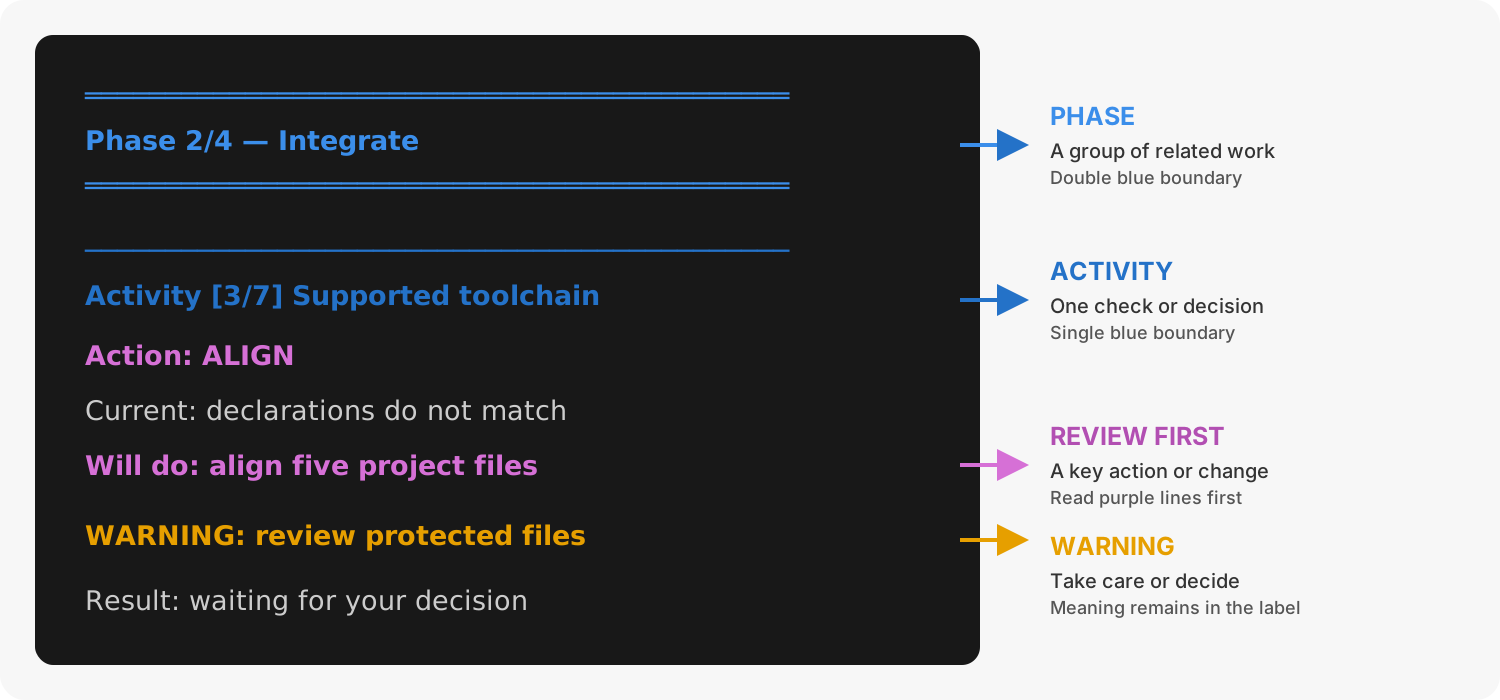
1. Reading a Diagnostics repair plan
The repair registry classifies every stable check as confirmable, online,
manual, ambiguous, prohibited, or not applicable. A source-level coverage guard
rejects a new diagnostic without a disposition. Stage 2 added the shared
transaction and rollback layer; Stage 3 adapted distribution metadata,
declared shared files, and bounded inconsistent pins. Later stages added
narrowly lossless TOML repairs and read-only project-cache reporting. Runtime
acquisition belongs to pdk pdf, while Diagnostics uses the existing pins
and shared-files services for the mutations it still supports.
Template metadata and updates remain manual: no diagnostic fix depends on
prodockit-template.
Each confirmed action creates
.prodockit-quarantine/diagnostics/<UTC timestamp>/manifest.json inside its
permitted boundary. The manifest records the stable repair/check/choice IDs,
the explicit confirmation, Prodockit version, original and backup paths, and
SHA-256 hashes without recording file contents, environment variables, or
credentials. Metadata retains the stricter active-virtual-environment boundary.
Each target must resolve within that boundary and must not itself be a symlink.
The virtual-environment rebuild is the sole operation that records internal
interpreter symlinks without following them. Recovery directories are added to
.gitignore before project-local content is quarantined. A failed verification
restores that action; a rollback failure stops the run and
reports both the original and quarantine locations for manual recovery.
Recover a confirmed repair
Normally no manual recovery is needed: a failed postcondition restores the current action automatically, while earlier confirmed actions remain applied. Keep the quarantine until the website and PDF have been rebuilt and reviewed.
If diagnostics reports rollback-failed, stop making changes and open the
reported manifest.json. Its entries are the recovery instructions:
- Confirm the manifest's
status, action ID, project root, and UTC timestamp identify the failed action. - For an entry whose
backupis present, verify the quarantined path's SHA-256 againstsha256. Move the currentoriginalaside if it exists, then copy the backup back to that exact project-relative original path. - For an entry whose
kindismissingandoperationiscreate, remove only the named original path that the repair created. - Rerun
pdk diag, then rebuild and inspect both website and PDF output. - Retain the manifest until the repaired project has been reviewed and committed. Never restore a backup into a different project or environment.
Distribution-metadata manifests live beneath the active virtual environment,
not the project. Recreate that environment instead of manually restoring it if
the recorded prefix no longer matches the interpreter running pdk.
--apply refuses redirected standard input and CI use before inspection or
mutation. Use pdk diag --dry-run --json there. There is deliberately no blanket
confirmation option.
For dependencies.shared-files, each missing target has a create-or-leave
decision. Each changed target offers a read-only expected/actual hash review,
replacement from the installed release, or leave unchanged. Replacement warns
before the decision and confirmation because it changes existing bytes. The
adapter passes only the selected state to the existing typed shared-file
service; it cannot touch an undeclared file.
For dependencies.pins, diagnostics only offers versions already detected in
the project's declarations. If one == build pin uniquely establishes the
reviewed version, that is the sole alignment option. If exact pins conflict,
every detected version remains a numbered option and Leave unchanged is the
default. Selection is not confirmation. The adapter rediscovers the package,
checks the inspected file fingerprint, backs up every file it will change, and
delegates one package and version to the existing typed pin service. It never
selects an online latest release.
For renderer.mermaid and renderer.mathjax, diagnostics inspects the selected
project-local cache and runs a real fresh-process render probe without
downloading or changing it. A clean missing cache is explicitly deferred to
the first PDF build; an incompatible or corrupt cache points to
pdk pdf --prepare mermaid or pdk pdf --prepare mathjax. Mermaid requires
only its reviewed Python wheels; MathJax additionally requires Node.js on PATH.
Neither production path uses npm, Puppeteer or a browser.
If project.extra.pdf_tex2svg_script explicitly selects a legacy MathJax
script, renderer.mathjax probes that script instead and reports its selected
path. An old tools/mathjax directory alone never selects it; remove an
unusable override to return to project-local JIT MathJax.
For project.configuration, automatic edits are restricted to
zensical.toml. Each unique spelling correction, obsolete index-setting move,
syntax-proven Prodockit extension, or recognized existing pdk.css/MathJax
asset is a separate default-No decision and confirmation. The adapter binds
the plan to the current file hash, changes one identified TOML construct,
preserves comments and unrelated formatting, parses the result, and confirms
that finding is gone. YAML, invalid syntax or values, missing author content,
unknown assets, duplicate destinations, and ambiguous paths remain manual.
For structured preview output, use:
Schema version 2 adds repair policy to every check and includes unselected dry-run choices as command argument arrays. It never emits a shell command containing credentials.
Environment and installation
Table 15.1 explains every environment and Python-installation result.
1. Environment and installation diagnostics
| Check ID | Failure or warning means | Author remediation |
|---|---|---|
environment.python |
Normally informational. An environment.inspection failure instead means Python's executable or prefix could not be inspected. |
Run python --version and python -c "import sys; print(sys.executable, sys.prefix)". Repair or reselect Python if either command fails, then reopen the terminal. |
environment.interpreters |
The shell's python command and the interpreter running pdk have different executable identities, prefixes, or Python minor versions. This catches a .venv that contains launchers from two Python installations before Adopt can install packages into the wrong one. |
Run pdk diag --dry-run --apply-check environment.interpreters. On macOS and Linux, the guarded repair asks which detected base Python to retain, defaults to leaving the project unchanged, archives the complete old .venv, rebuilds it from requirements.txt, and hands verification to the replacement interpreter. On Windows, deactivate the environment, move .venv aside, and resume Bootstrap because a running python.exe cannot safely replace itself. If a newly activated environment is healthy but pdk still launches an earlier global installation, run rehash in zsh or open a new shell. |
environment.virtual-env |
VIRTUAL_ENV names a different environment from the Python running Prodockit, or the project contains .venv but another environment is active. The second case commonly follows creating a project with Bootstrap and changing into its directory without leaving Bootstrap's parent setup environment. |
Deactivate the stale or setup environment, activate the project's .venv, and reopen the shell or select that interpreter in the editor. Confirm with python -c "import sys; print(sys.prefix)", then rerun diagnostics. Where the project does not contain .venv, matching pipx, Conda, system-Python, and CI installations remain valid. |
installation.commands |
pdk, prodockit, or zensical is missing, reports a different version from the distribution loaded by Python, or resolves outside the active Python environment. |
Activate the intended environment. Compare python -m pip show prodockit zensical with pdk --version, prodockit --version, and zensical --version; use which on macOS/Linux or where on Windows to find stale commands. Remove the stale installation or put the active environment's scripts directory first on PATH, then reinstall with python -m pip install --upgrade prodockit if required. |
installation.dependencies |
python -m pip check found a missing or incompatible installed dependency, or could not run. |
Read the named package constraint in the detail. Use python -m pip check to reproduce it, then install a compatible set in the active environment. Prefer the versions pinned by the project; do not blindly upgrade one package when another explicitly constrains it. |
installation.metadata |
Installed distribution metadata is invalid or the same normalized package name appears in more than one location. This is a warning because unrelated duplicate metadata need not prevent a build. | For duplicate Prodockit or Zensical metadata in an active virtual environment, run pdk diag --apply. It keeps the single entry matching the loaded package, moves known older entries to .prodockit-quarantine, and refuses ambiguous cases. For another package, run python -m pip show PACKAGE and investigate manually; the fixer deliberately leaves it unchanged. |
environment.inspection / installation.inspection |
An operating-system or metadata error prevented that whole diagnostic area from being read. Other sections still run. | Use the error detail to correct permissions or the damaged installation. Rerun with --verbose; if it persists, attach the JSON report and the output of python -m pip check to a support request. |
Project configuration and inputs
project.text-encoding reads the project files that Prodockit consumes and
checks that their bytes are valid UTF-8. It covers every Markdown page below
the configured docs_dir, the active site configuration (including recognized
legacy-compatible filenames), and
recognized supporting files such as .prodockit-*.toml, requirements files,
renderer package manifests, and GitHub or GitLab workflow YAML. Generated
sites, virtual environments, dependency directories, caches, Git metadata and
Adopt backups are excluded. Each failure names the file and its one-based line
and byte column; correct or re-save that file as UTF-8, then rerun the command.
This is an encoding and readability check, not a security scan.
project.jinja-table reads Markdown below the configured docs_dir without
rendering Jinja or changing files. It detects standalone
{% if %}, {% elif %},
{% else %} and {% endif %} lines
between rows of a pipe table established
by a header and delimiter. Without a right-trim marker, a rendered branch can
insert a blank line, ending the table and leaving later rows or its caption
detached. Each failure gives a source file and line. Add - before %} on
each reported control, such as {% if condition -%} or
{% endif -%}, then
rerun pdk diag and a strict Zensical build. The check ignores code examples,
comments, raw Jinja blocks, and conditionals outside established tables.
project.configuration loads the same project model used by Prodockit's PDF
pipeline and reuses the complete pdk config --check integrity inspection. It
does not replace Zensical's own strict build.
Table 15.2 maps its possible problems to an author action.
2. Project configuration and input diagnostics
Problem reported for project.configuration |
Author remediation |
|---|---|
| The configuration cannot be loaded | Confirm the file exists and is valid TOML or YAML. Pass a non-standard location with pdk diag -f PATH. Correct the first parser error before investigating later settings. |
| An obsolete Prodockit setting | pdk diag --apply can move the two legacy index settings when the destination is unambiguous. Otherwise replace it with the setting named by pdk config --check; do not keep both old and new names. |
| An unknown or misspelled Prodockit setting or extension | pdk diag --apply offers a rename only when one supported spelling is uniquely identified. Otherwise use the report to decide manually. If the setting belongs to another Zensical extension, keep it in that extension's own table rather than a prodockit.* table. |
| A setting has the wrong type or an invalid value | Change it to the boolean, string, list, or non-empty value described by pdk config --check. |
| A stylesheet, JavaScript file, navigation page, Markdown image, or configured CSL file is missing | Restore the referenced file or correct its path relative to zensical.toml. Follow Zensical's MathJax instructions for website assets; PDF renderer caches are managed separately by pdk pdf. |
A local .css or .js asset exists but is not configured |
pdk diag --apply can add only a recognized existing Prodockit stylesheet or MathJax asset. For every other file, choose whether to configure or remove it. |
| A configured Mermaid, MathJax, Pandoc or other PDF renderer is unavailable | Run pdk pdf --prepare COMPONENT or let the next PDF build prepare its project-local cache. Install a reported manual prerequisite such as Node or system Pango with the operating-system package manager. |
| An established back-of-book index preparation can no longer import PyMuPDF | Rerun pdk pdf in the active project environment. A clean project defers PyMuPDF until its first indexed PDF build. |
| Prodockit syntax is present while its extension is disabled | pdk diag --apply can enable the uniquely identified extension in TOML. Otherwise enable it manually or remove syntax the project no longer uses. |
After correcting the source problem, run both checks:
The first gives the complete configuration report; the second confirms the configuration alongside the environment and external tools.
Dependencies and managed files
Table 15.3 covers declarations recorded in the project, rather than packages currently imported by Python.
3. Dependency and managed-file diagnostics
| Check ID | Failure or warning means | Author remediation |
|---|---|---|
dependencies.pins |
A failure means two or more discovered declarations name different versions. A warning means the declarations do not match the complete software combination supported by the installed Prodockit release. With --online, it can also mean a newer release exists or the package index could not be queried. |
For a supported-combination warning, run pdk pins, review the inventory, and accept each tested default. This is deliberately not a pdk diag --apply: choosing and applying versions remains visible in the dedicated pins workflow. For disagreement, run pdk pins --check --offline, review every declaration, then use pdk pins --set PACKAGE=VERSION to move them together. For an available update, rebuild and review output before adopting it. For a lookup warning, retry later or use the deterministic offline form. |
dependencies.shared-files |
A file declared in .prodockit-shared-files.toml is missing or differs from the installed Prodockit release, or the shared-file manifest is invalid. |
Run pdk shared-files --check --verbose. Review local changes first; use pdk shared-files --apply only when the installed release is the intended source. Move project-specific CSS into the documented project-owned stylesheet before replacing a managed file. |
dependencies.inspection |
Files containing version pins or shared-file metadata could not be read. | Correct the path, encoding, manifest syntax, or file permissions named in the detail, then run the narrower pdk pins --check --offline and pdk shared-files --check commands. |
Rendering toolchain
A clean missing project cache is a warning because the first applicable PDF build prepares it transparently. Its Node and macOS/Linux WeasyPrint prerequisites are deferred at the same boundary. An incompatible or unhealthy established cache remains a failure when the current configuration requires it, so first-use convenience does not hide a broken working toolchain. Table 15.4 gives the repair for each component.
4. Rendering-toolchain diagnostics
| Check ID | Failure or warning means | Author remediation |
|---|---|---|
renderer.pandoc |
A warning says first-use preparation is pending. A failure says an existing cache is incompatible, corrupt, or failed its absolute-path version/citeproc probe. | Let the next applicable build prepare it, or run pdk pdf --prepare pandoc; diagnostics itself never downloads or changes the cache. |
renderer.fonts |
A warning says first-use preparation is pending. A failure says an existing Inter/JetBrains Mono bundle is incompatible, corrupt, or incomplete. | Let the next PDF build prepare it, or run pdk pdf --prepare fonts; diagnostics itself never downloads or changes the cache. |
renderer.weasyprint |
On Windows x64, a warning says first-use preparation is pending; a failure means an existing runtime is incompatible, corrupt, or fails its absolute-path CLI probe. Elsewhere, a clean project defers installation of pdf-requirements.txt; an established preparation that no longer imports is a failure. |
Let the first pdk pdf install and check the complete toolchain, or run pdk pdf --prepare weasyprint. On macOS/Linux, install any reported native Pango libraries from the installation guide. |
renderer.node |
A missing or unusable Node command is deferred while a clean MathJax cache awaits first use, then becomes a failure after MathJax preparation has begun. | Let the first maths PDF build check it, or install the supported Node version and confirm with node --version. |
renderer.mermaid |
A warning says first-use preparation is pending. A failure means an existing cache is incompatible, corrupt, or fails its fresh-process SVG probe. | Let the next PDF build prepare it, or run pdk pdf --prepare mermaid; diagnostics itself never downloads or changes the cache. |
renderer.mathjax |
A warning says first-use preparation is pending. A failure means the selected MathJax 4 cache is incompatible or unhealthy, or an explicitly configured legacy script fails its own SVG probe. Node has its own prerequisite check. | Install Node.js if required, then let the next PDF build prepare MathJax or run pdk pdf --prepare mathjax. For a failed legacy override, correct or remove pdf_tex2svg_script; a leftover tools/mathjax tree is ignored unless selected explicitly. |
renderer.inspection |
An operating-system error prevented the rendering tools from being inspected. | Correct the path or permissions named in the detail. Run each shown executable with --version, then rerun pdk diag --verbose. |
Repository and template maintenance
Repository checks are read-only. The default form examines local Git and
template metadata only; --online adds the remote template comparison. Public
GitHub template checks use HTTPS, and other Git probes disable authentication
and host-key prompts rather than taking input intended for Diagnostics.
Table 15.5 explains each repository result.
5. Repository and template diagnostics
| Check ID | Failure or warning means | Author remediation |
|---|---|---|
repository.git |
Git is unavailable, the project is not inside a repository, the repository cannot be inspected, it has no configured remotes, or its history is shallow. Most of these are warnings because a local document can still render; a shallow checkout fails because PDF revision dates require complete history. | Run diagnostics from the project root. Install Git if the project uses repository macros or publishing automation. Use git remote -v and the repository host's clone instructions to restore the intended remote; do not invent a remote for an intentionally local project. For a shallow checkout, run git fetch --unshallow; in GitHub Actions use fetch-depth: 0, and in GitLab CI use GIT_DEPTH: "0". |
repository.template-metadata |
.prodockit-template.toml is invalid, .prodockit-template is empty or unreadable, or ownership metadata cannot be parsed. A valid stamp reports both the exact comparison revision and the last template release successfully applied; a legacy stamp may not yet have the release. Absence of both files is valid for a project that was not created from the template. |
Restore the files from version control or repair the exact manifest/stamp error. Do not guess a template commit or release. For a legacy template-derived project whose applied release is not recorded, run pdk template-sync to preview the migration and apply it through the normal reviewed workflow. |
repository.template-update |
With --online, a warning means the recorded template revision differs from the template host's current HEAD, or the comparison could not be completed. It is never an automatic failure. |
If an update exists, run pdk template-sync to preview it, then follow its reviewed --apply workflow. If the lookup failed, check network/SSH access and retry; the offline diagnostic remains deterministic and valid. |
maintenance.adopt-readiness |
Diagnostics found the same local supported-toolchain, standard-component, or saved component-choice work that pdk adopt and the prerequisite phase of template-sync would report. Standard-component details name only the missing extensions or website inputs. An existing bibliography-backed or inline citation implementation satisfies the citation capability without enabling the alternative. A warning means bounded integration remains, or Python 3.11–3.13 is in use: these versions have compatibility tests, but full Adopt toolchain integration is qualified on Python 3.14. Other Adopt blockers remain failures. This check is local and independent of prodockit-template. |
For bounded integration, run pdk adopt --dry-run to review the matching activities, then pdk adopt --apply. Under Python 3.11–3.13, activate a Python 3.14 project environment before using Adopt to change packages or files; ordinary Prodockit use can continue. A missing .prodockit-components.toml appears as its own manifest-only activity and defaults both optional renderers off; use pdk adopt --configure first when the project needs Mermaid or maths. Rerun pdk diag; it should pass this check before template-sync introduces unrelated template changes. An offline diagnostic cannot report a remote template update; use pdk diag --online or pdk template-sync for that separate comparison. |
repository.inspection |
Git or template files raised an operating-system error after the project was found. | Correct the path or permissions named in the detail. Confirm git status and git remote -v work from the project root, then rerun diagnostics. |
Attach a report to a support request
Generate structured evidence without copying terminal colour or screenshots:
The report shortens project and home-directory paths and removes credentials
embedded in HTTPS remote URLs. Review it before attaching it, as you would any
diagnostic file. Include the command you ran, the build error, operating system,
and whether the failure is local, in CI, or both. Use --online only when the
support question concerns published versions or template drift.
Do not attach generated documentation, private source files, credentials, or repository secrets unless the support channel explicitly requires them and is approved to receive them.