PDF generation
prodockit.pdf builds a standalone PDF from your Zensical site - the kind of
downloadable, submittable document professional and academic reports
commonly need alongside the website itself. It reads the same
zensical.toml your site already has, so there's nothing new to learn or
configure beyond a couple of optional settings.
Figure 31.1 shows the same authored table in the two outputs.
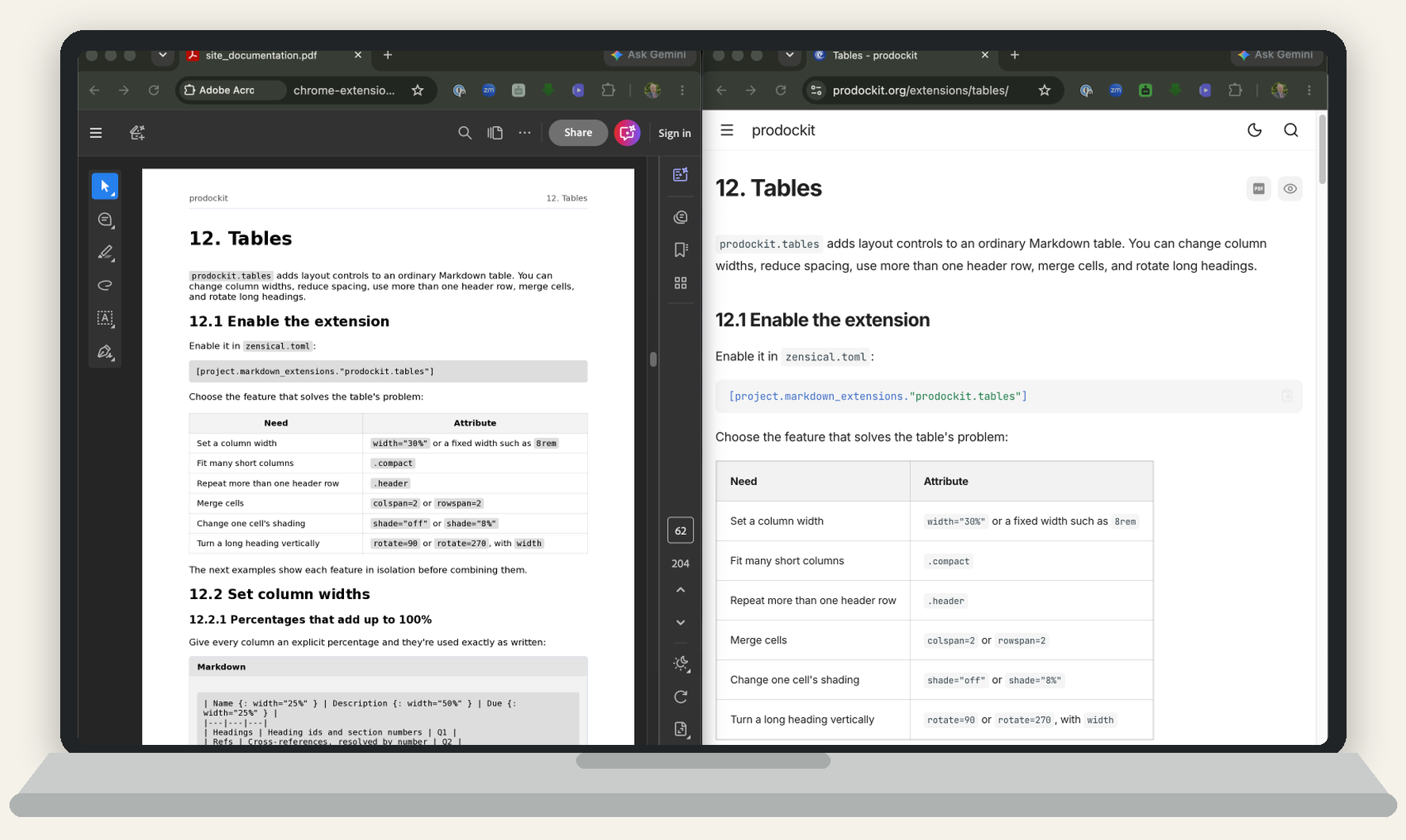
1. The same source rendered as a website and PDF
Build your first PDF
Follow these steps from the project root—the directory containing
zensical.toml:
-
Check how the project was prepared
There are three valid setup routes. Bootstrap and Adoption prepare the Python project environment but do not install PDF runtimes or operating-system libraries.
pdk pdfowns its project-local runtimes. Manual installation gives the author direct control of every dependency. Use the matching row under Prepare the PDF tools before continuing. -
Configure only what the document needs
The defaults produce an A4 PDF containing every page in
nav, in the same order, atdocs/site_documentation.pdf. Continue without adding settings for a first build. Use Configure the PDF only when the document needs a different output path, page size, margins, a single-page build, or another optional layout feature. -
Build the website strictly
The PDF command consumes this completed website. Building it first also makes broken links, missing anchors, and other Zensical validation failures stop the process before a PDF is produced.
-
Build and inspect the result
Run the
prodockit pdfcommand:Open the PDF and check its cover, contents, headings, page breaks, diagrams, and final page before changing any layout setting.
The command reads the rendered articles from the configured
site_dir; it does not invoke or clean Zensical. Rebuild the website first whenever its Markdown, configuration, templates, or assets have changed.
Prepare the PDF tools
The command uses Pandoc to assemble the document and WeasyPrint to draw the pages. What remains to be installed depends on the route used to prepare the project:
Table 31.1 shows which installation route supplies the PDF tools and what, if anything, remains to be installed manually.
1. Prepare the PDF tools
| Setup route | PDF preparation |
|---|---|
| Bootstrap | Prepares the Python project environment; pdk pdf prepares its project-local runtimes on first use. |
| Adoption | Aligns the active Python environment and records selected components; pdk pdf prepares their runtimes. |
| Manual installation | Install the PDF dependencies the document uses by following the operating-system instructions below. |
Activate the project's virtual environment, then use the instructions for its operating system when the route above requires them:
Pandoc and the Inter/JetBrains Mono PDF fonts require no host installation.
The first applicable build downloads verified archives into
.prodockit/cache/pdf/; bibliography-only use prepares Pandoc without fonts.
On macOS and Linux, the first PDF build also creates a missing
pdf-requirements.txt and installs its packages into the active project environment. The
standard file contains only WeasyPrint. When the back-of-book index is enabled,
Prodockit adds PyMuPDF to that first-use preparation. A matching warm build
does not invoke pip or contact a package index.
To force preparation before a build, run:
No MSYS2, Pango installation, PATH change, registry change, or Python WeasyPrint package is required for the Windows x64 PDF engine. Prepare the official verified runtimes explicitly, or let the first PDF build do it:
The runtime is cached beneath .prodockit/cache/pdf/ for this project.
Prepare and verify the exact supported Pandoc in the project-local PDF cache:
pdk pdf performs the same preparation transparently before a build. On macOS
and Ubuntu, it also verifies the system-backed Python renderer with
python -c "import weasyprint; print(weasyprint.__version__)". On Windows
x64, use pdk pdf --prepare weasyprint; it validates the cached standalone
CLI by rendering a smoke-test PDF.
If either command fails, use Fix common PDF build problems rather than changing PDF layout settings.
A back-of-book index
also needs pymupdf. Do not install an extra manually: pdk pdf detects the
enabled index and adds PyMuPDF to that project's prepared PDF environment.
Add Mermaid diagrams or TeX maths only when used
WeasyPrint does not run browser JavaScript. ProDockit therefore prepares a verified Python-only Mermaid runtime in the project cache and turns diagrams into static SVG before Pandoc assembles the document. It needs no Node.js, npm, browser, MSYS2 or virtual-environment package installation.
TeX maths uses a verified project-local MathJax 4 distribution. Its adapter
currently requires Node.js on PATH, but it needs no npm package installation.
Both renderers are prepared transparently only when the built content uses
them. Prepare them in advance when required:
The command validates an existing healthy cache without contacting the network. Website mathematics remains separately configured by the author using the Zensical MathJax instructions.
Once installed, ordinary Markdown maths works in both outputs. For example, the inline formula \(c = \sqrt{a^2 + b^2}\) and the display formula below are rendered by MathJax on the website and embedded as static SVG in the PDF:
Build the PDF and inspect at least one real diagram or formula. If source text appears instead of rendered output, see A diagram or formula remains as source.
Configure the PDF
Website and shared authoring settings are read from zensical.toml; PDF-only
policy is read from the adjacent pdk-pdf.toml. Nothing is passed on the
command line beyond, optionally, which Zensical config file to use:
Building a single file
To include just one Markdown file in the PDF - a single chapter, say, rather
than the whole document - pass --markdown-file (-m for short), a path
relative to docs_dir:
This narrows the PDF's contents; it does not rebuild or narrow the website.
Run the complete strict Zensical build first, then prodockit pdf reads only
the requested page from that generated output. nav is therefore ignored for
selecting the PDF pages, while fonts, page size, margins,
heading_numbering, and the rest still come from
zensical.toml exactly as they do for a full PDF. The output defaults to that
file's own name with a .pdf extension inside docs_dir (for example,
docs/chapter1.pdf) instead of site_documentation.pdf, unless
[document].output is set, in which case that always wins.
Most of what the PDF needs, it already gets from settings your site likely
has for other reasons: site_name, copyright, repo_url, docs_dir,
theme.font.text/.code, theme.icon.admonition, and extra_css - your
site's own stylesheet(s) are passed straight through, so a @media print
rule (e.g. hiding a website-only "Download PDF" link/button, since
WeasyPrint always renders in print mode) applies in the PDF too. The rest
lives in pdk-pdf.toml, all optional:
Run prodockit config to see these values resolved for the current project,
including which came from pdk-pdf.toml, a deprecated Zensical fallback, or
a default. Use
prodockit config --check to reject obsolete, misspelled or invalid Prodockit
settings and missing local project inputs instead of letting a successful
build conceal a fallback or incomplete document. The complete project checks
are described under Test the built output.
Projects created before this boundary can continue reading
project.extra.pdf_* values. On first pdk pdf use, the command copies those
values into the matching pdk-pdf.toml tables and removes the old keys. If
both files specify different values, it stops and asks you to resolve the
conflict; it never silently chooses one. A repeat run makes no further change.
The legacy reader is a deprecated upgrade bridge, not a second writer.
Table 31.2 compares a single-page diagnostic build with the checks performed for a complete document.
2. Building a single file
| Setting | Default | What it does |
|---|---|---|
[document].output |
"<docs_dir>/site_documentation.pdf" |
Where the PDF is written. |
[document].copyright |
falls back to project.copyright |
Overrides copyright for the PDF's own footer only - see Copyright text. |
[document].page_size |
"A4" |
Any WeasyPrint-supported CSS page size ("Letter", ...). |
[margins].top / .right / .bottom / .left |
"2cm", except .bottom at "2.5cm" |
Page margins, as CSS lengths. The bottom is deeper because the running footer sits in it - see Copyright text. |
[document].double_sided |
false |
Duplex-printing layout - see Double-sided (duplex) printing. |
[margins].inner / .outer |
"2cm" each |
Spine-side/fore-edge margins, used instead of .left/.right when double-sided layout is on. |
[header_footer].font_size / .color / .divider_color |
"10pt" / "#555555" / "#e2e8f0" |
Running header/footer styling. |
heading_numbering |
true |
Chapter/appendix numbering on headings and captions. |
reference_style |
"european" |
"european" (tight, single-line citation entries) or "global" (double-spaced, hanging indent - the common APA/MLA/Chicago style). |
[table_of_contents].include |
true |
Whether to generate and insert a table of contents. |
[table_of_contents].title |
"Table of Contents" |
That page's own heading text. |
[document].extra_css |
none | A list of docs_dir-relative stylesheet paths, same shape as extra_css above but meant only for the PDF. The standard order is managed pdk-pdf.css followed by author-owned print.css; both are loaded after the renderer foundations and the website styles, so print.css has the final say at equal specificity. |
A page's own front matter
pdf_includepdf_include: false keeps that page on the
website but omits it from a complete, navigation-driven PDF. A single-page
-m build still includes the page because it was requested explicitly. For
example:
A page's own front matter is_appendix: true gives it letter-based
numbering ("A", "A.1", ...) instead of numeric, matching
prodockit.headings' own appendix_attr convention.
A page's own front matter recto_title: "Short Title" overrides its
running header text from the next page onward - see
Double-sided (duplex) printing. Your
nav's index page can also use {WORDCOUNT}/{REPOURL}/{RELEASE}/
{{ config.site_name }} markers - see
Cover page markers.
Web-only / PDF-only content
Mark any block or inline element {.web-only} (via
attr_list) for
content meant only for the live website - a "Download PDF" link/button is
the common case, since linking to the very PDF you're already reading
doesn't make sense once it's embedded in that PDF. {.pdf-only} is the
opposite: content meant only for the PDF, e.g. an automated word count or
release tag on a cover page that only makes sense in a standalone
document.
.web-only needs no configuration - prodockit.pdf's own generated CSS
always hides it, in every build, whether you're using prodockit pdf or
calling build_pdf() directly. .pdf-only is the one half prodockit can't
provide automatically (its own CSS has no reach into your live website),
so add this one line to your project's own website stylesheet:
(see this project's managed docs/stylesheets/pdk.css for a working
example). If your project doesn't yet use .pdf-only for anything, there's
nothing to add until it does.
Copyright text
copyright (a native Zensical setting, not one of prodockit's own -
see Building a single file above) feeds both
the live website's own footer and the PDF's running footer, by
default - whatever you set once shows, unchanged, in both places.
copyright under pdk-pdf.toml's [document] table overrides it for the PDF's own
footer only, leaving the website's copyright text completely untouched
either way. Unset by default, so an existing project's PDF and website
keep matching unless you deliberately add it - useful when you want the
PDF to show something the website version wouldn't make sense showing
(or vice versa), without having to keep two near-identical strings in
sync by hand.
Both values accept a real HTML fragment, the
same as Zensical's own website-side copyright setting already does -
a real <a href="../..."> link renders as a real, clickable link in the
PDF too, not flattened to plain text. Use a real <br> for a forced
line break. The obvious use: crediting the tools your report was built
with, on their own second line, without touching the copyright/licence
text itself:
[document]
copyright = 'Author: Jane Doe. Licensed under the MIT License.<br>Made with <a href="https://zensical.org/">Zensical</a> and <a href="https://prodockit.org/">prodockit</a>.'
Links and line breaks remain real PDF content rather than being flattened to plain text. Contributors changing the footer implementation should read PDF pipeline and API.
The outer footer prints the page count followed by Updated on YYYY-MM-DD.
Each source section carries its own date across all of its PDF pages. A
manually supplied revision_date or git_revision_date_localized takes
priority; otherwise Prodockit uses the newest Git author date, or the source
file's modification date when the document is not in Git. The cover,
contents, and generated index do not claim a section update date.
The equivalent website-side credit (if your project wants a "Made with
Zensical and X" line on the live site too) isn't a prodockit setting
at all - prodockit has no reach into the website's own Jinja partials.
It's a Zensical theme override instead: with custom_dir set (see
Zensical's own docs), drop your own overrides/partials/copyright.html
based on the bundled version, adding a second credit line after the
existing "Made with Zensical" one.
Why the bottom margin is deeper than the others
The footer is top-aligned in the bottom margin and grows downward as it gains lines, so whatever the margin does not use is the space left before the paper edge. A two-line footer at a 2cm bottom margin ends about 6.1mm from the edge - inside the 5-6.4mm many consumer and office printers cannot print at all, so the second line risks being cropped even though the PDF itself is correct.
[margins].bottom therefore defaults to 2.5cm, which leaves about
11.1mm. A footer of three or more lines needs more again: set
[margins].bottom explicitly and check the result on paper, not just
on screen.
Cover page markers
Drop any of these literal strings into your nav's index page - typically
a cover page, e.g. wrapped in {.pdf-only} as in the example above - and
prodockit pdf substitutes a real value once that page's HTML exists, no
configuration needed:
Table 31.3 lists the cover-page placeholders and the values substituted for them.
3. Cover page markers
| Marker | Becomes |
|---|---|
{WORDCOUNT} |
The site-wide word count (the same value a {{ pdk_word_count }} website macro variable would show), so a submission's PDF and its live website page never disagree. |
{REPOURL} |
The git-detected repo URL (the same value {{ pdk_repo_url }} gives a website macro). |
{RELEASE} |
The latest published GitHub/GitLab release tag (e.g. v1.2.0). The whole line containing this marker is dropped instead if there isn't one - most projects never publish a release at all, so nothing shows a bare "Release: " label by default. |
{{ config.site_name }} |
Your project's own site_name, substituted literally - prodockit pdf never evaluates Jinja, so the exact same native Zensical expression works here too, one line of Markdown for both outputs. The former {{ site_name }} spelling remains accepted while projects migrate. |
Skipped entirely for a --markdown-file-scoped build, or if your nav
has only one page - there's no separate "cover" vs "content" to compute a
word count from either way.
Landscape pages
Anything too wide for a portrait page - a reference table, a diagram, a
chart - can be given landscape page(s) of its own instead: wrap it (and
its own caption) in <div class="landscape-page" markdown="1">, using
md_in_html
(the markdown="1" is required - without it, the content inside is left
as literal, unconverted text):
<div class="landscape-page" markdown="1">

**A wide reference table**

| ID {: width="15%" } | Description {: width="70%" } | Due {: width="15%" } |
|---|---|---|
| 1 | ... | Q1 |

</div>
It is not limited to tables. A Mermaid diagram, an image, a wide code block - whatever is in the block gets the page:
<div class="landscape-page" markdown="1">

</div>
The content prints on its own landscape-sized page(s) - the same configured page size, width and height swapped. A page break is always forced immediately before and after the block, so it never shares a page with anything else.
Content longer than one page simply carries on. A table spanning
several landscape pages repeats its header row on every one of them,
exactly as it would on a portrait page - measured directly: a 90-row
table produced five landscape pages, each carrying the header (see
prodockit.tables for the width syntax above,
which works the same way here).
A document mixing portrait and landscape pages prints without any special handling - a PDF reader rotates each page to fit the paper on its own.
This is PDF-only - the same wrapped content renders completely normally
on the live website, the same way .web-only content
elsewhere in this project only ever affects one of the two outputs.
Syntax-highlighted code
Fenced code blocks use Zensical's light-theme syntax palette in the PDF, with
medium-weight characters and name tokens slightly darkened for print contrast.
The PDF conversion reuses the tokens produced for the website, so it does not
need to guess the language and
preserves the same distinction between keywords, names, operators and strings.
Plain code blocks remain plain. Inline and fenced code use Zensical's relative
0.85em scale, so their font size follows the surrounding text rather than
being fixed at an absolute point size.
If a block is not coloured on the website, add its language after the opening
fence (for example, ```toml). The PDF deliberately does not invent
highlighting that is absent from the generated website.
Double-sided (duplex) printing
Set double_sided = true under [document] for a document meant
to be printed and bound on both sides - a book or handbook, rather than a
web-printed report. Left-hand (verso) and right-hand (recto) pages mirror
their header/footer content and page margins, and every numbered heading
starts its own recto page:
[document]
double_sided = true

[margins]
inner = "3cm"   # spine side - wider, to leave room for binding
outer = "1.5cm" # fore-edge (outer) side
[margins].inner/.outer replace .left/.right once
[document].double_sided is on - the "inner" (spine) side is the left
margin on a recto page but the right margin on a verso page, and vice
versa for "outer" (fore-edge), so a single pair of settings covers both
without you having to think about which physical side is which for any
given page. [margins].top/.bottom are unaffected either way.
Every corner of the running header/footer mirrors between recto and verso, keeping the chapter title and page number on the outer, fore-edge corner and the site name/copyright on the inner, spine-side corner, whichever physical side that happens to be for a given page - confirmed directly, by rendering a real double-sided document and inspecting facing pages, that this is how it actually looks.
Every numbered heading (chapter start) also always starts on its own
recto page - a blank page is inserted automatically if the previous
chapter ended on an odd page, exactly like the blank pages you'd expect at
the start of each chapter in a real printed book. This needs no
configuration; it's part of what [document].double_sided turns on.
A page's own front matter recto_title: "Short Title" overrides that
page's own running header text with a shorter title, from the next page
onward (the heading's own page still shows its full title) - handy when a
chapter's real title is too long to comfortably fit the running header:
---
recto_title: "Ch. 1"
---

# Chapter One: A Rather Long Title That Wouldn't Fit In A Running Header
This setting is meaningful whether or not [document].double_sided is on - the
running chapter title appears in the header either way, just in a
different corner.
Bundling source into a PDF
The prodockit source-bundle command builds a second PDF - your Markdown content and
zensical.toml, one file per page - for a submission that needs the
underlying source alongside the rendered document:
This is separate from prodockit pdf because the two files serve different
purposes: one is the rendered document and the other is a record of its
source. Run each command only when you need that output.
Writes docs_dir/source_bundle.pdf by default, so Zensical serves it
with no separate copy step. Override with [source_bundle].output in
pdk-pdf.toml:
The running header's report name is your site_name; the page size is
[document].page_size - the same setting prodockit pdf reads, so both PDFs a
project publishes share one physical page size rather than needing it
set twice.
Every file is rendered in 8pt Courier with wrapped lines (a genuinely long line wraps rather than running off the page or getting cut off), starting on its own page, with a running header (that page's own file path on the right) and a "Page N of M" footer.
Which files are included: README.md at the project root, every .md file
under docs_dir recursively, the Zensical config used for the build, and
pdk-pdf.toml when present -
your editable documentation source, not generated root Markdown such as
CHANGELOG.md, CONTRIBUTING.md, or LICENSE.md, and not the project's
tooling around it. A file that isn't valid UTF-8 text is
silently skipped rather than failing the build, though in practice that
never applies here (Markdown and TOML are always text).
Need to bundle more than the document source?
The command deliberately includes only the root README, documentation pages, Zensical config, and PDF policy. Contributors building a custom bundle can use the Python API described in PDF pipeline and API.
Table of contents and bookmark outline
A PDF built by prodockit pdf has two separate tables of contents, built by
two different tools:
- The Table of Contents page itself (
[table_of_contents].include/.titleabove) - generated by Pandoc from every heading it sees, viapandoc.structure.table_of_contents(). - The bookmark outline - the navigation pane a PDF reader shows down
the side, e.g. Adobe Reader's or a browser's own PDF viewer's sidebar.
This is built separately by WeasyPrint, which bookmarks every
h1-h6straight from its own UA stylesheet.
prodockit.headings's
unlisted class (Pandoc's own, not a prodockit invention) keeps a heading
off the Table of Contents page. It has no effect on the bookmark outline -
an .unlisted heading still becomes an outline node, and because outline
nesting follows heading level, every later heading of lower level nests
underneath it instead of under its real chapter. Add unbookmarked too
(prodockit's own generated CSS gives h1.unbookmarked-h6.unbookmarked
bookmark-level: none) to remove a heading from the outline as well:
Nothing prodockit pdf generates itself carries unbookmarked - the
back-of-book index's own A/B/C letter headings, the Table of Contents
title, and every cover-page heading are all unnumbered unlisted (so a
reader can still navigate to them) but deliberately not unbookmarked,
since they belong in the outline. Reach for unbookmarked yourself only
for a heading that shouldn't be there at all - e.g. an illustrative
heading in documentation that demonstrates real rendered output rather
than a code sample (see this project's own
docs/extensions/refs.md).
Back-of-book index
A traditional, two-column back-of-book index, generated from every
\index{Term} marker when include = true in the prodockit.index
extension's settings. It is PDF-only; there is no equivalent on the live
website. Marking terms, turning the setting on, and what the
generated page itself looks like are all covered together in
Index (PDF only),
since (unlike every other feature on this page) marking and generation
are two different extensions - see that page for the full syntax and
worked examples. Contributors scripting a custom build can read about the
two-pass implementation in
PDF pipeline and API.
Contributors calling the Python API or changing the HTML, Lua, CSS, Mermaid, source-bundle, or index stages should use PDF pipeline and API.
Fix common PDF build problems
Start with the symptom shown by the failed command. The following subsections cover missing native libraries, browser-rendered components, and output that is valid but laid out unexpectedly.
The active environment is older than the project requires
Before it changes the generated site, prodockit pdf compares the active
prodockit and Zensical commands with their >= floors in the project's
requirements.txt. If either is older, the build stops and names the active
version, the required version, the Python executable and the requirement file.
Activate the project's virtual environment, install its requirements with the
exact command printed in the error, and run prodockit pdf again. This is a
live-environment check; prodockit pins --check remains the separate,
deterministic check that the versions written across project files agree.
WeasyPrint cannot load a graphics library
Installing the WeasyPrint Python package does not install the operating
system's Pango, GLib, HarfBuzz, or fontconfig libraries. This usually
appears as cannot load library 'libgobject-2.0-0', sometimes beneath Pandoc
status 43. Pandoc has started successfully in that case; the PDF engine it
called could not start.
First repeat the import check from the activated project environment:
Then open the tab for the operating system used for the build and check its library location.
On Apple Silicon, Homebrew installs the libraries under
/opt/homebrew/lib. Export that path in the terminal used for the build:
Use /usr/local/lib instead on an Intel Mac.
The normal Windows x64 path does not import Python WeasyPrint or load a
host Pango installation. Run pdk pdf --prepare weasyprint to validate or
repair the digest-pinned project cache, then retry the build. Diagnostics
reports the cached version, digest, path and health without downloading.
Confirm that libpango-1.0-0, libpangoft2-1.0-0, and the separate
libharfbuzz-subset0 package are installed.
Repeat the platform-appropriate check before retrying prodockit pdf.
A diagram or formula remains as source
Run pdk pdf --prepare mermaid or pdk pdf --prepare mathjax to validate or
repair the relevant project cache, then rebuild. MathJax also requires Node.js
on PATH; neither renderer requires npm, Puppeteer, Chrome/Chromium or MSYS2
in production.
Browser-level website checks are test-only. Configure website mathematics using Zensical's own authoring instructions rather than the private PDF cache.
After the build, open a page containing a real diagram or formula. Automated output checks can also detect raw Mermaid or TeX left in the finished PDF.
Limitations and workarounds
prodockit.pdf pipes your site's own rendered HTML through Pandoc and
WeasyPrint to produce the PDF - two tools with their own reader/writer
quirks and no JS engine, quite different from a browser rendering your
live website. See Known limitations
for the confirmed limitations this shapes in prodockit.pdf.html/.lua/
.css, and the workaround each one gets.
For supported tool versions, platforms, and the pre-1.0 stability boundary, see Support and compatibility.