Check and update a template project
This sequence combines several commands. Use it for a project created from
prodockit-template. It gives one
repeatable starting point whether you only want to confirm that the project is
healthy or you expect a template update. The
Command reference gives the complete interface of each
command without repeating these task steps.
-
Activate the project's environment
Open a terminal in the folder containing
zensical.toml, then activate that project's.venv. Do not run the checks from the parent Bootstrap environment. -
Establish the current health baseline
Resolve every
FAILbefore attempting a template update. If Diagnostics offers a bounded repair, inspect it withpdk diag --dry-runbefore deciding whether to runpdk diag --apply. A run containing onlyPASSresults establishes that the local project is healthy; it does not check whether the remote template has changed. -
Align the selected project components when requested
If Diagnostics reports that Adopt has integration stages to apply, preview exactly those local changes:
Review the stages, then use
pdk adopt --applyif they are correct. Adopt can install or align the supported local toolchain and save the project's selected components, but it never downloads or applies a template. Rerunpdk diagafterward and resolve any remaining failure before continuing.Figure 13.1 is a short visual guide to the output used in this step. Use section 28.1, Scan phases and stages for the complete explanation of the phases, stages, actions, warnings, and decisions shown by Adopt and later by Template Sync:
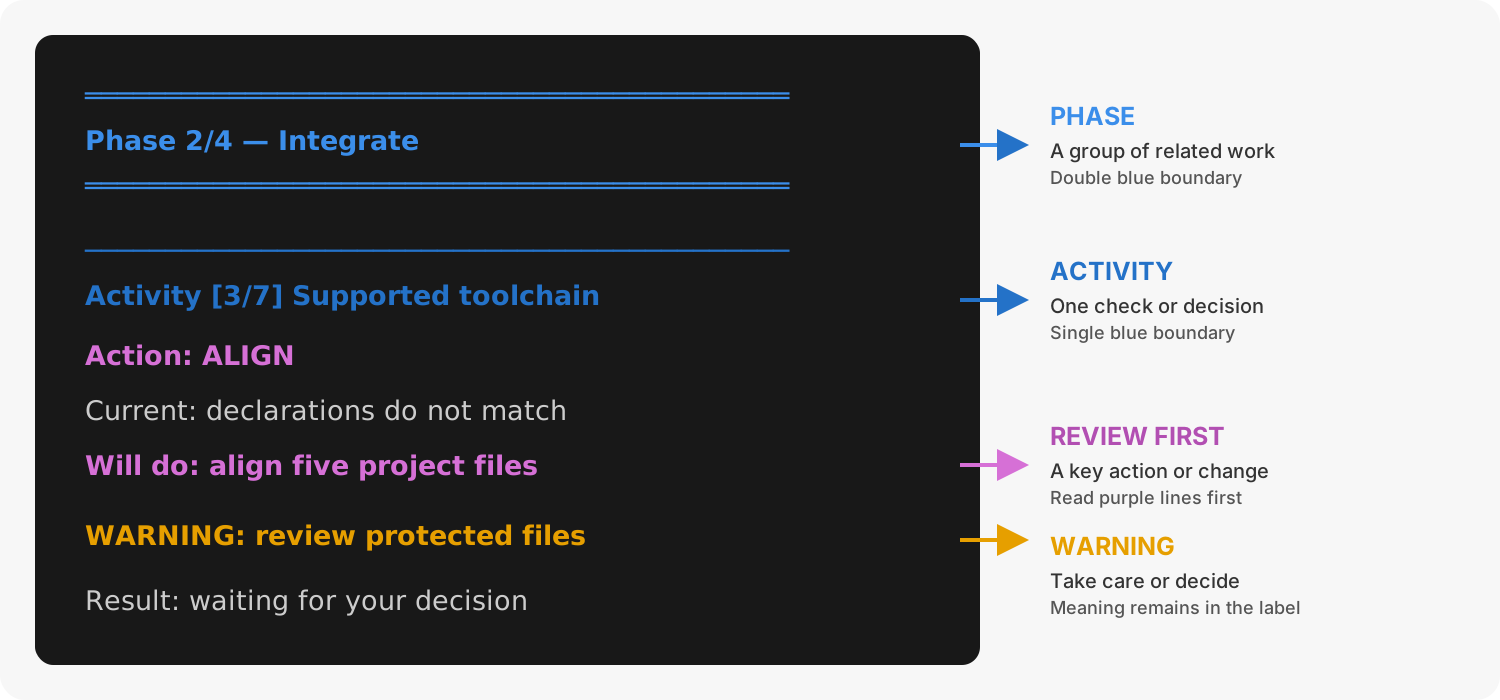
1. Reading the phase-and-stage output during a project check
-
Check the dependency declarations
If this passes and you only wanted to check the project, continue to the final verification step. If Diagnostics or Pins says the declarations are outside the supported combination, run
pdk pins, review the versions, and accept only the tested defaults. Then rerun both the offline Pins check andpdk diag. -
Preview and apply a template update when one is needed
If the preview says the project is already up to date, no template action is needed. Otherwise review the reported files, then run:
Use
--review-allwhen the preview lists several edited template files. For each file, inspect the diff and choose overwrite,.new, or skip; skip is the safe default. Review and merge the generated pull or merge request before continuing. -
Confirm the applied template and pins agree
After the update has been merged and your local project contains that merge, run:
The first command should report that no template file changes are needed. The second should report that every dependency declaration agrees. Investigate any remaining result rather than repeatedly applying the update.
-
Run the final health and output checks
The project is ready when Diagnostics passes, the website build reports no issues, and the PDF is written successfully. Review the website and PDF before submitting or publishing them.